
[Gaming NB/DT] Aura Wallpaper Introduction
[Gaming NB/DT] Aura Wallpaper Introduction
Table of Contents
- Aura Wallpaper Introduction
- Model Supported
- System Prerequisites
- Application Install& Uninstall
- Launch Aura Wallpaper
- Aura Wallpaper Setup
- Aura Wallpaper System tray setup
- Aura SYNC Setup
- Content Platform
- Q&A
Aura Wallpaper Introduction
Aura Wallpaper is an extension application of the Armoury Crate platform, and turns entire desktop into an RGB device. Aura Wallpaper allows user to set up ROG exclusive wallpaper and select of the RGB lighting on ROG wallpaper, and that can also synchronize the wallpaper with other Aura Sync compatible devices. Through synchronizing Wallpaper、laptop and peripheral devices lighting effect perfectly combined to create a personal gaming style.
Model Supported
Supports ROG and TUF series Gaming laptop and desktop, and require Windows 10 and above operating system version.
System Prerequisites
The Aura Wallpaper has been integrated into the Armoury Crate application. Users need to configure the Aura Wallpaper settings through the Armoury Crate application.
Supported Version: Armoury Crate application version must be higher than V5.0 above.
*Please refer to Link for more details about Armoury Crate Introduction.
Application Install& Uninstall
How to get and install Armoury Crate,please refer to ASUS official website.
How to uninstall Armoury Crate,please refer to ASUS official website.
Launch Aura Wallpaper
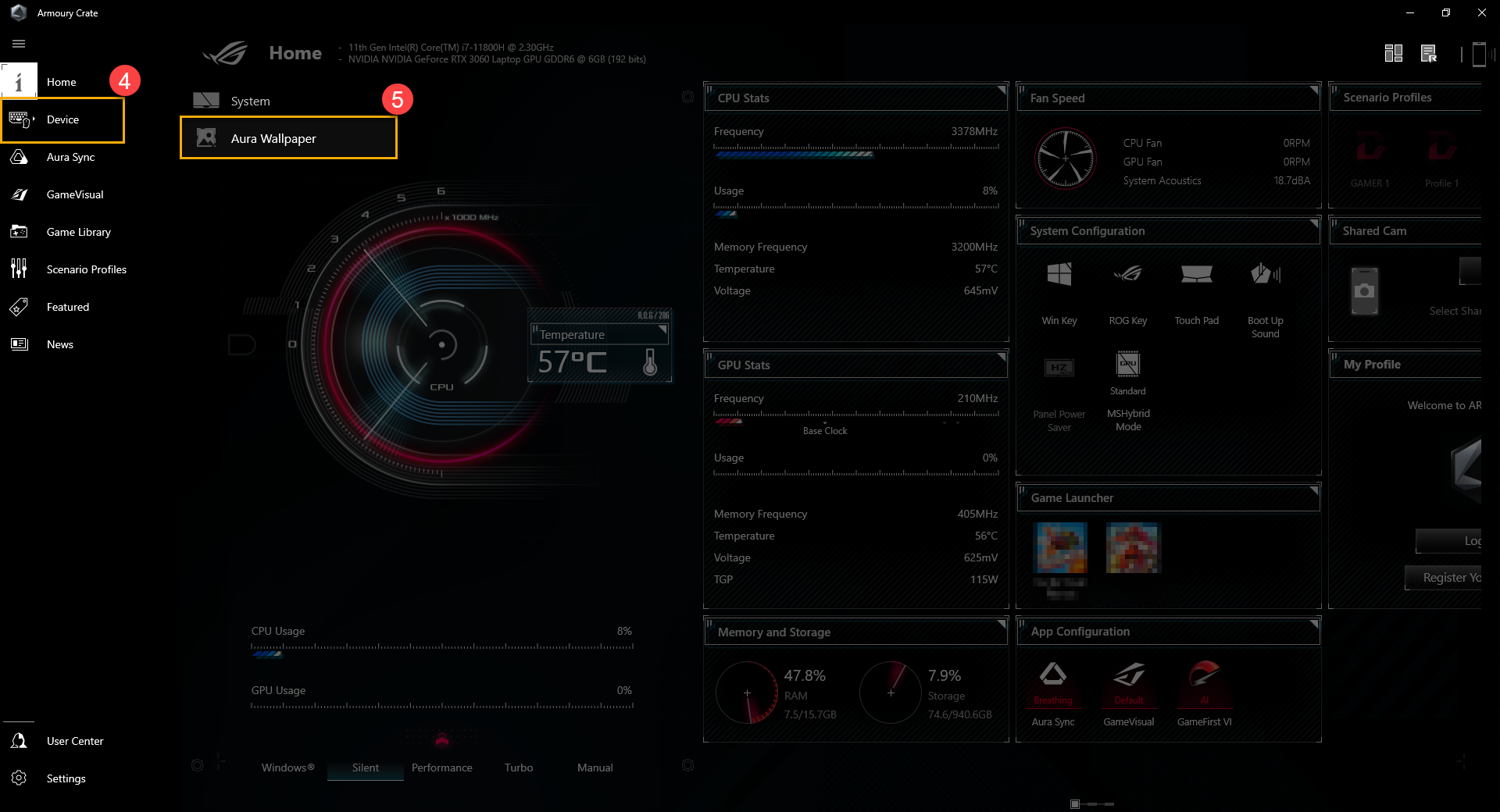
Please click [Windows Search]① and type in [ARMOURY CRATE]②,and then click [Open]③ to launch Armoury Crate.

In ARMOURY CRATE home page, clicking [Device]④ and then select [Aura Wallpaper]⑤to get into setup.
Back to Contents
Aura Wallpaper Setup
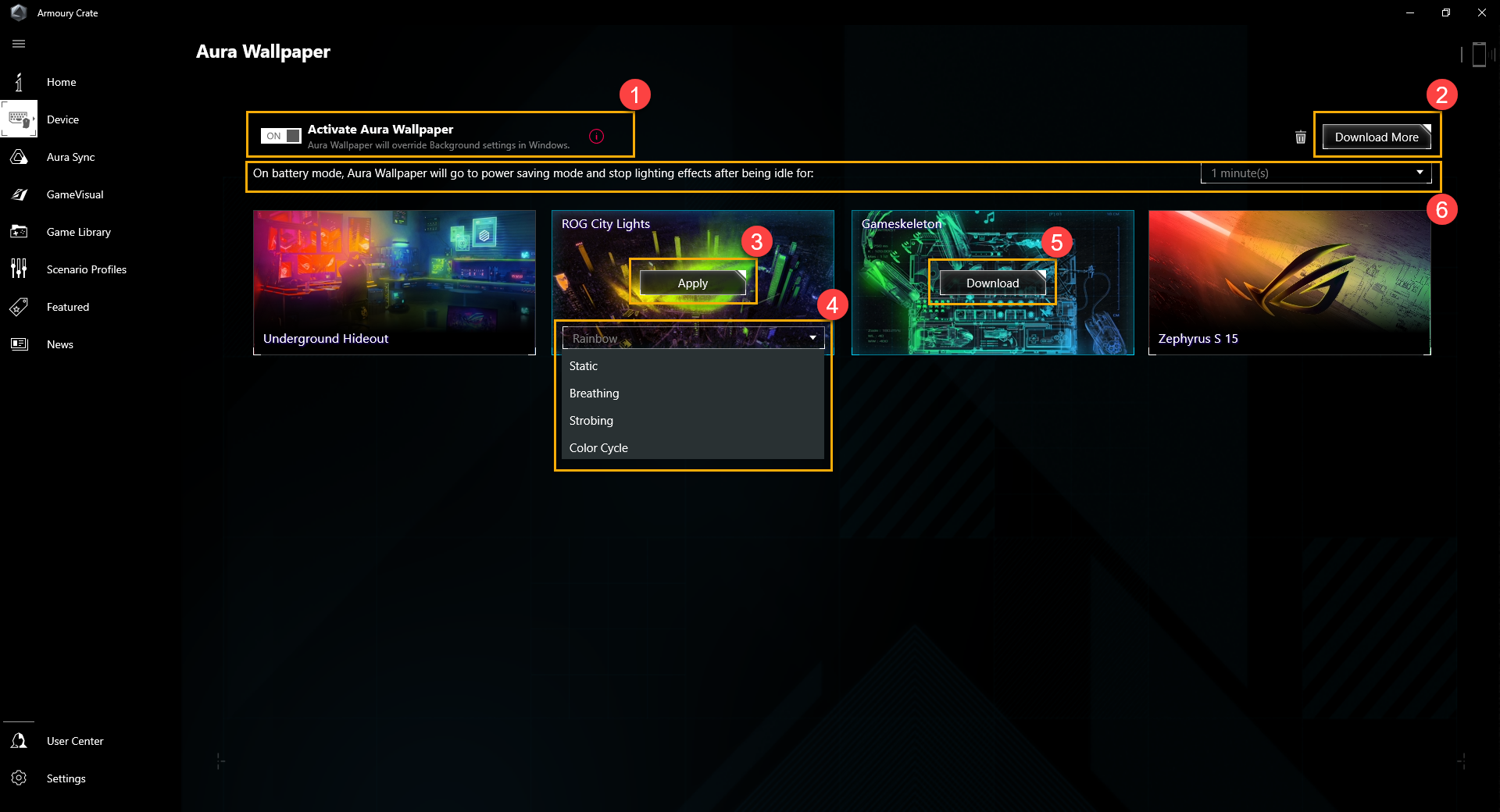
① Activate Aura Wallpaper: Aura wallpaper will override default Windows background setting.
② Download More: Gamers will be directed to [Content Platform] for more Aura Wallpaper.
③ Apply: To apply this Aura Wallpaper.
④ Lighting Effects: Selecting the lighting effects your preferred.
⑤ Download: To download this Aura Wallpaper.
⑥ Power Saving Mode: On battery mode, Aura Wallpaper will stop lighting effects after being idle for.
Back to Contents
Aura Wallpaper System Tray Setup
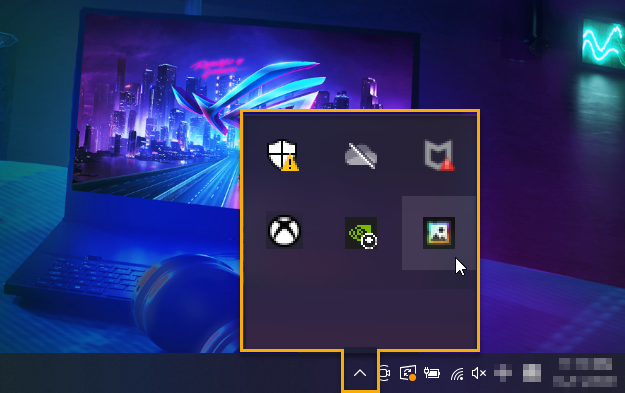
Once launch Aura Wallpaper, gamers can also click Windows system tray and then select Aura Wallpaper icon to setup.
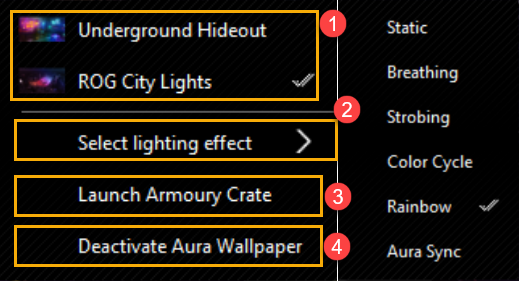
① Apply Aura Wallpaper: To select the Aura Wallpaper.
② Select Lighting Effect: To select the Aura Wallpaper lighting effect.
③ Launch Armoury Crate: Launch Armoury Crate application.
④ Deactivate Aura Wallpaper: Deactivate Aura Wallpaper, and the background will return to default setting.
Back to Contents
Aura SYNC Setup
Aura Wallpaper can also synchronize with laptop Aura light effects thru Aura SYNC, and setup Aura basic lighting effects.
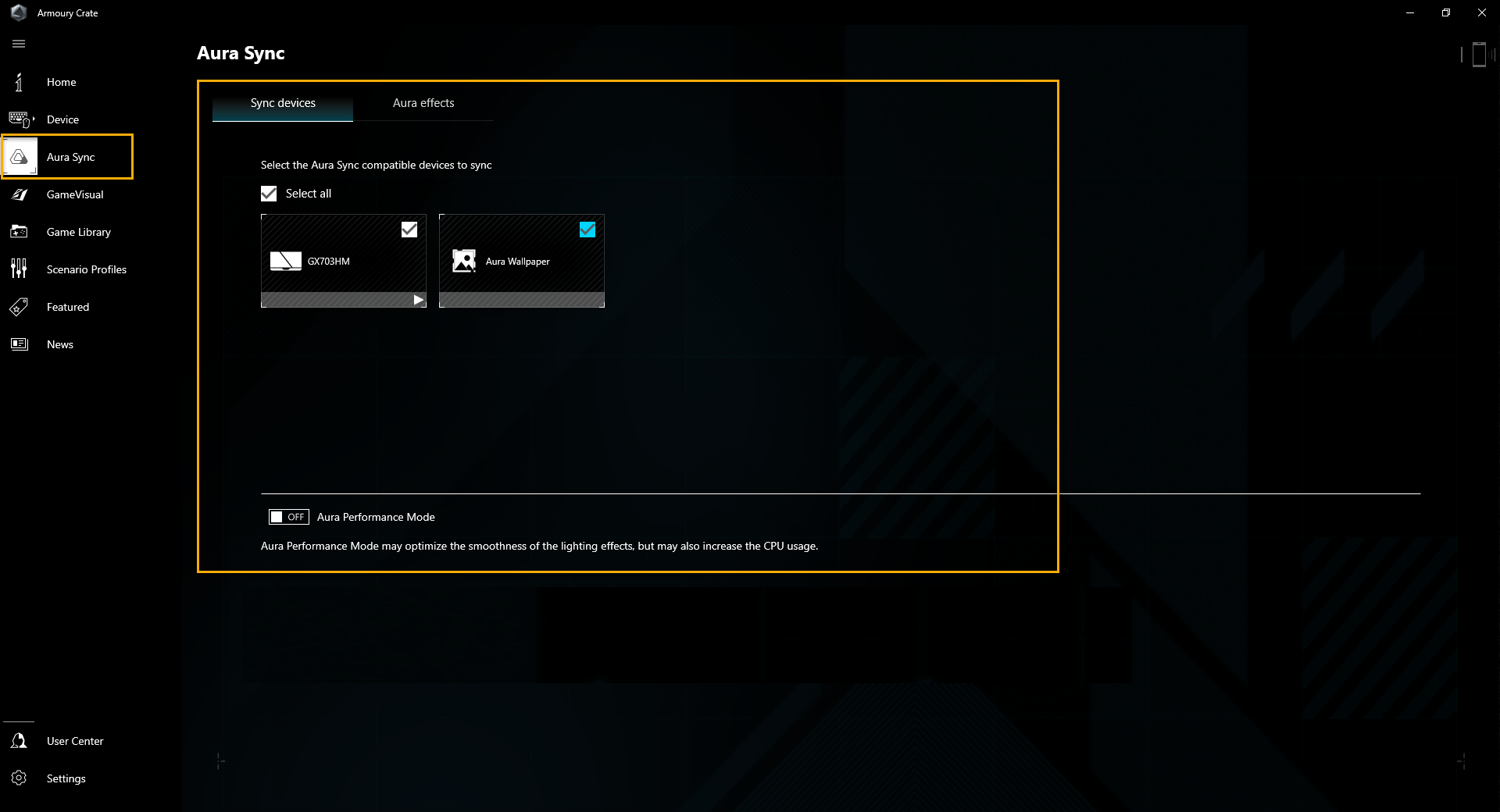
*For more details about Aura SYNC, please refer to [Armoury Crate introduction]
Back to Contents
Content Platform
Through content platform, gamers can download more exclusive Gaming series products Aura wallpaper.
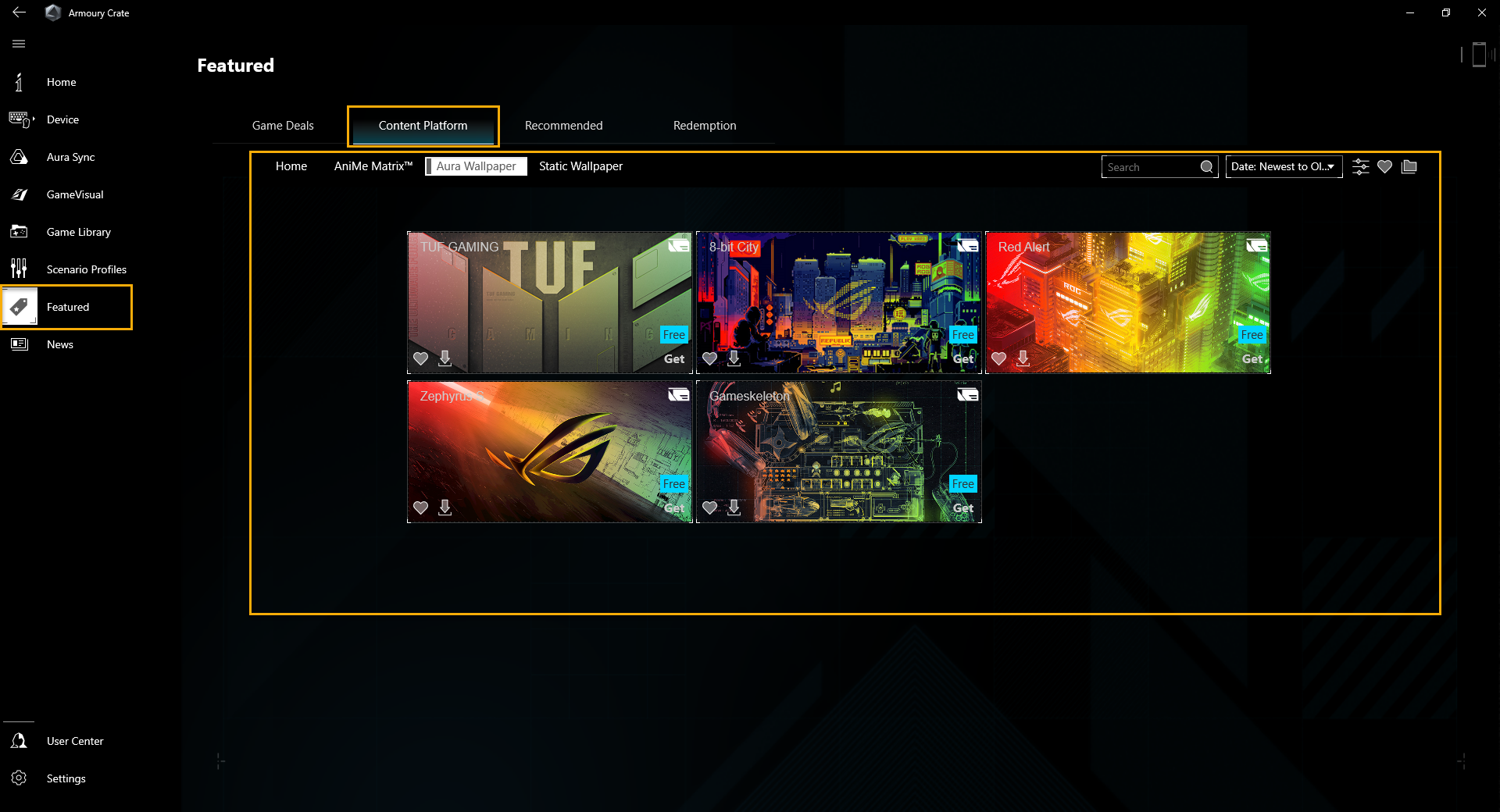
Back to Contents
Q&A
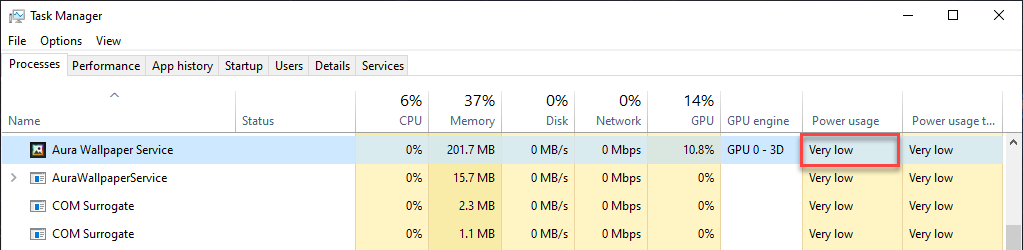
Q1: Why my laptop GPU utilization is getting higher after Aura Wallpaper activate?
A1: We suggest checking Windows Task Manager with GPU Power usage, then you can see that the actual Aura Wallpaper does not affect the overall performance and power consumption. Once Aura Wallpaper activated, it will occupy some GPU resource, so the GPU utilization goes up, but due to Task Manager usually doesn't count all GPU Power Usage and GPU Clock rate, so the GPU utilization looks may higher than actual.
Q2: Can I edit Aura Wallpaper lighting effects through Aura Creator?
A2: For now, each Aura Wallpaper has exclusive lighting effect and feature already, so there is not yet to provide for customizing lighting effects through Aura Creator.
Back to Contents
Link nội dung: https://itt.edu.vn/hinh-nen-pc-gaming-a17503.html